
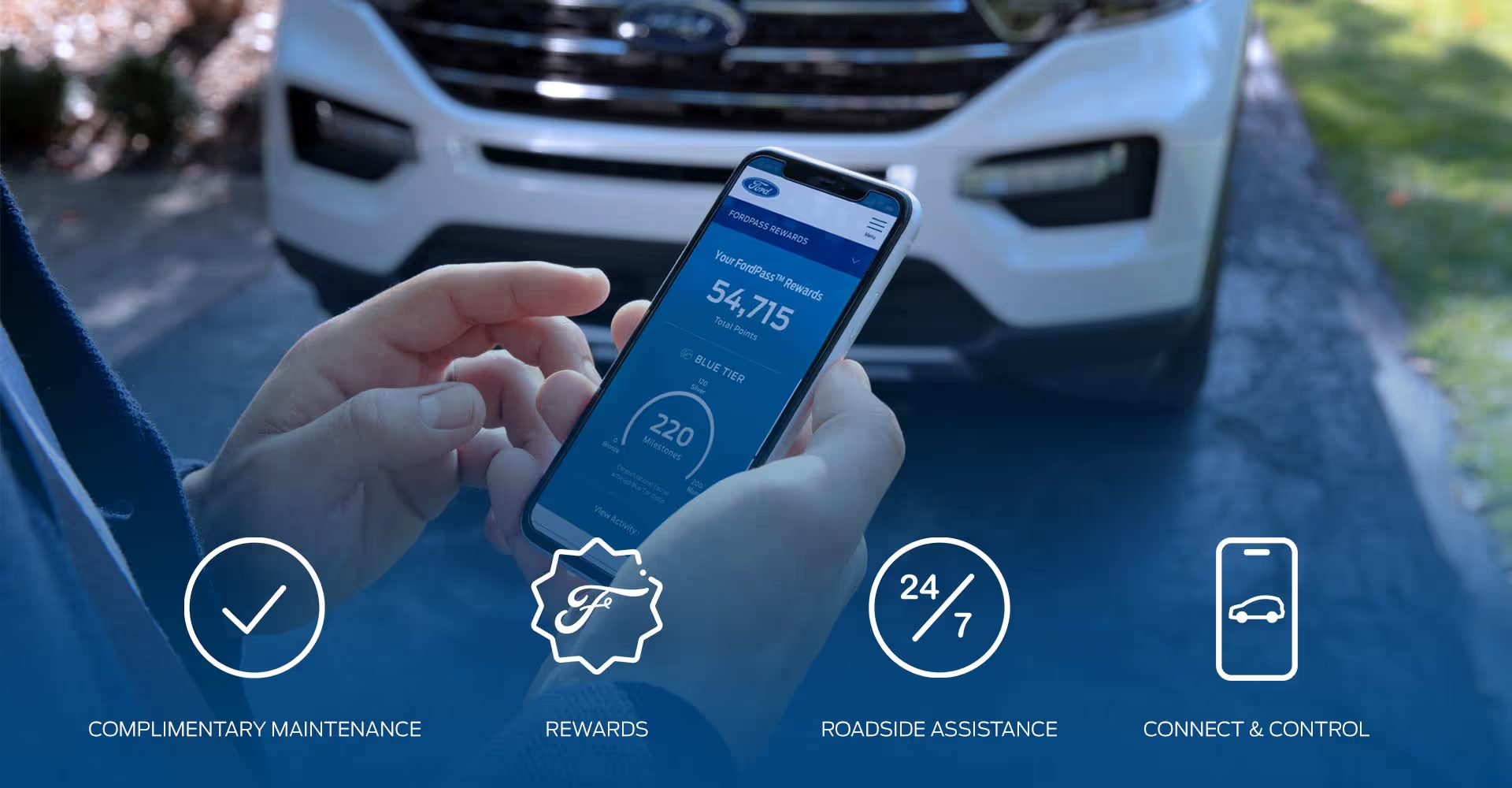
If you’ve planned trips using FordPass and can’t figure out how to view them later, you’re not alone. At Jim Burke Ford, we regularly help customers navigate this exact question. Here’s what makes this process confusing: Ford rebuilt the FordPass app from the ground up, and many versions no longer include the Trip Planner feature that used to live in the mobile app.
Before you spend time searching through your phone, know that you have two reliable ways to view saved FordPass trips: through your vehicle’s SYNC navigation screen and, if your app version still supports it, through the FordPass mobile app. We’ll walk you through both methods and help you troubleshoot when your saved trips don’t appear where you expect them.
Understanding FordPass Trip Planner and Power My Trip
FordPass Trip Planner and Power My Trip were designed to make journey planning seamless. You could create detailed routes with multiple stops before getting in your vehicle. These features work with live traffic data to help you dodge delays and pick the most efficient path. Electric vehicle owners especially benefit because the system displays charging station locations along your route.
When you create a trip plan, you can specify your starting charge percentage and choose between fastest, shortest, or eco-friendly routes. The system saves these preferences alongside your planned stops and charging details. If your vehicle has SYNC 4 or SYNC 4A with an active FordPass Connect complimentary Connected Service subscription, these saved trips sync between your phone and your vehicle’s navigation system.
Since the app rebuild, Trip Planner has vanished from many FordPass versions. If you open your FordPass app and don’t see the Map or Trip Planner options, your saved trips still exist. You’ll just need to access them through your Ford’s touchscreen instead.
How to View Saved Trips in the FordPass Mobile App
If your FordPass app version still includes Trip Planner, viewing your saved trips takes just a few taps. This method works when you want to review trip details before getting in your vehicle.
Step 1: Open the Map and Locate Trip Planner
Launch the FordPass app on your smartphone and tap the Map icon in the bottom navigation bar. This screen serves as your central hub for trip management. Once the Map screen loads, look for the Trip Planner option near the top of the interface or within a menu icon.
If you don’t see Map or Trip Planner anywhere in your app, your version likely removed this feature during the rebuild. Skip ahead to the in-vehicle SYNC method, which works regardless of your app version.
Step 2: Access Power My Trip to View Saved and Upcoming Trips
After selecting Trip Planner, tap “Create a New Trip Plan” or a similar option that displays your trip planning interface. Here, you’ll find both upcoming trips you’ve scheduled and previously saved trips you can reuse. The interface consolidates all your trip information in one view.
Each saved trip displays your planned stops, selected route type, and any charging station preferences you specified. Tap any saved trip to view full details or make modifications before sending it to your vehicle’s navigation system.
How to Find Saved Trips on Your Ford’s Navigation Screen
Your vehicle’s SYNC navigation screen provides the most reliable way to view saved FordPass trips, especially after the app rebuild. This method works consistently across SYNC 4 and SYNC 4A systems, giving you immediate access to your trip plans from your driver’s seat.
Accessing MyTrips Through the Navigation Menu
Press the Navigation button on your SYNC touchscreen. From the main navigation screen, locate and select MyTrips from the menu options. This section stores all trips synced from your FordPass app. You’ll see a list of your stored routes, complete with destination names and route details you specified when creating each trip.
Select any saved trip from the list to view its full details, including planned stops and routing preferences. From here, you can start navigation immediately or make adjustments before departing.
Using the Search Bar to Find MyTrips on SYNC Systems
SYNC 4 and SYNC 4A systems also let you access saved trips through the search functionality. Tap the search bar at the top of your navigation screen and type “MyTrips” or “FordPass Trips.” The system displays your saved trips as search results, providing an alternative path when you want to quickly jump to a specific trip.
This search method works particularly well when you have many saved trips and want to filter through them quickly using keywords from the trip name or destination.
Troubleshooting When Your Saved Trips Don’t Appear
When your saved trips vanish from view, a few common culprits are usually responsible. We walk customers through these solutions regularly at Jim Burke Ford, and most issues resolve quickly once you identify the root cause.
Missing Trip Planner or Power My Trip Feature
The most common issue customers face is that FordPass Trip Planner no longer exists in their current app version. Ford’s app rebuild prioritized different features, and Trip Planner didn’t make the cut for many users. This isn’t a bug but an intentional change in the app’s structure.
Your saved trips still exist in Ford’s system and remain accessible through your vehicle’s SYNC touchscreen. Use the in-vehicle navigation methods described above to view and manage your Ford navigation saved trips moving forward.
Syncing Issues and Connectivity Problems
If your trips don’t appear on your SYNC screen, check that your FordPass Connect subscription is active and your vehicle’s modem is properly activated. These connected services rely on AT&T’s network, so verify your vehicle shows a strong cellular connection. Open your vehicle’s connectivity settings through the SYNC menu and confirm FordPass is listed as a connected service.
Sometimes trips fail to sync because your FordPass app isn’t properly linked to your vehicle. Open the app, navigate to your vehicle profile, and ensure it shows a successful connection. If the connection appears stale, try removing and re-adding your vehicle to force a fresh sync.
Software Updates and App Permissions
Outdated software frequently causes syncing problems between FordPass and your vehicle. Check for FordPass updates in the Google Play Store or Apple App Store, and install any available versions. Similarly, update your SYNC software through your vehicle’s touchscreen settings menu or by initiating an update through the FordPass app.
Verify that FordPass has permission to access your phone’s location services. Without location permissions, the app can’t properly sync trip data. Check your phone’s settings and ensure FordPass has “Always” or “While Using” location access enabled. After updating software and confirming permissions, try saving a new test trip to force the system to resync all your trip data.
Tips for Managing Your FordPass Trip History
Reviewing Driving Insights
Regular review of your trip data helps you understand your driving patterns across Bakersfield and the Central Valley. The driving insights feature tracks miles traveled, time on the road, and provides data on braking performance, cornering, and acceleration. This information proves valuable if you’re trying to improve fuel efficiency or reduce wear on your vehicle.
Optimizing Route Preferences
When creating new trips, take advantage of the route filtering options. Selecting eco routes can significantly reduce fuel consumption on longer Central Valley business trips, while fastest route options help when you’re running late. Save frequently traveled routes so you can quickly access them without recreating the same plan repeatedly.
Understanding Location Tracking
The FordPass vehicle tracking capability extends beyond simple trip planning. Your trip data accumulates over time, creating a useful record of where you’ve driven. This proves particularly helpful for business owners tracking mileage for tax purposes or families coordinating complex schedules across multiple drivers. FordPass does track your vehicle location when you enable these features, and this functionality requires an active FordPass Connect subscription and proper app permissions.
Maintaining System Performance
Keep your trip management practices simple: regularly check that syncing works properly between your phone and vehicle, update both FordPass and SYNC software promptly when new versions release, and periodically review your saved trips to delete outdated routes cluttering your SYNC MyTrips list.
Get FordPass and SYNC Support at Jim Burke Ford
Technology should simplify your driving experience, not complicate it. When troubleshooting steps don’t resolve your FordPass or SYNC issues, our service technicians at Jim Burke Ford offer hands-on assistance during regular service hours. Our team has worked with Ford technology across generations of vehicles and SYNC systems throughout our decades serving the Bakersfield community.
Whether you need help linking your FordPass account, updating SYNC software, or understanding why your trips won’t sync properly, we’re here to help. Stop by either our Downtown location at 2001 Oak St or our Automall location at 5300 Gasoline Alley Dr, or reach out through our website to get personalized help with your Ford’s connected features.


