
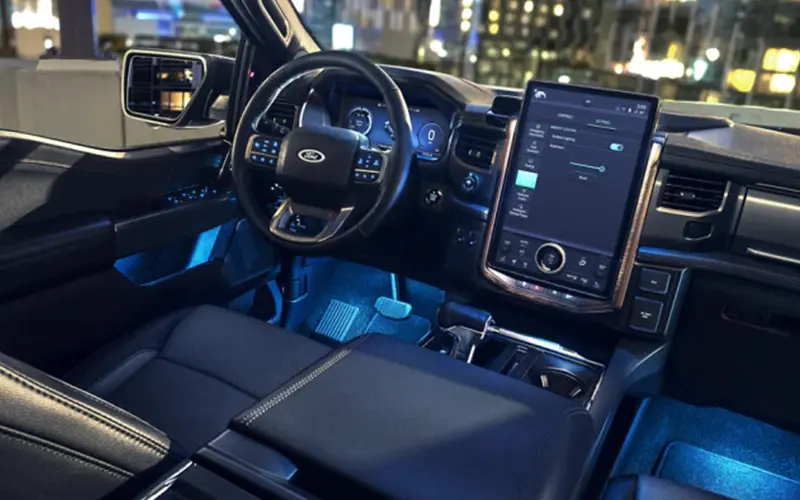
We know that the right interior atmosphere can transform every drive. At Jim Burke Ford in Bakersfield, we help customers discover and customize their Ford’s ambient lighting features daily. This practical guide walks you through adjusting your Ford’s interior lighting across different SYNC systems and manual controls, whether you drive a Mustang with 127 color options or an F-150 with Ice Blue accents. Most Ford owners don’t realize how much personalization sits right at their fingertips. Let’s explore how to adjust ambient lighting in your Ford and create the perfect cabin environment for every journey.
Understanding Ford Ambient Lighting Systems
Ford’s ambient lighting technology illuminates key areas throughout your vehicle’s cabin to boost visibility and create atmosphere. The system typically lights footwells, door panels, cup holders, and console areas with customizable colors and brightness levels. Your ambient lighting kicks in automatically when both the ignition and headlamps are turned on (a requirement many owners initially miss).
The sophistication of your ambient lighting system depends largely on your vehicle’s model year and trim level. Higher trim packages generally offer more extensive customization options, while base models may include fixed Ice Blue lighting without adjustable settings. Newer Ford trucks particularly tend toward limited color options, often restricting customization to preserve a more utilitarian feel.
Understanding your specific system’s capabilities prevents frustration when certain menu options don’t appear as expected. Your Ford owner’s manual remains the definitive resource for model-specific details, as configurations vary significantly across the lineup.
Which Ford Models Feature Ambient Lighting
Most modern Ford vehicles include some form of ambient lighting, though the level of customization varies considerably. The Mustang leads with the advanced MyColor technology offering up to 127 individual color selections. Popular models like the Explorer, Escape, and Expedition typically feature seven standard color options with adjustable brightness.
The F-150 and other Ford trucks present an interesting case here. Many newer truck models limit ambient lighting to Ice Blue only, reflecting customer preference research and the truck segment’s practical nature. This design choice means adjustment options focus on brightness rather than color selection.
We’ve helped countless Bakersfield customers understand their specific vehicle’s capabilities before purchase. Trim level matters significantly. An Explorer Limited offers different ambient lighting features compared to an Explorer XLT. Higher-tier packages like Platinum or King Ranch trims generally include more sophisticated lighting systems with zone-specific controls.
If you’re shopping for used cars with ambient lighting, we recommend verifying the exact features during your test drive. Not all model years within the same nameplate offer identical ambient lighting capabilities.
How to Adjust Ambient Lighting Using Your SYNC Touchscreen
Adjusting Lighting on SYNC 4A and SYNC 4
SYNC 4A represents Ford’s most intuitive ambient lighting interface. Start by tapping the Settings or Home icon on your touchscreen. Press Settings, then select Ambient Light from the menu options. You’ll see available colors displayed as visual swatches. Simply tap your preferred color choice. To adjust brightness, drag the color swatch up to increase intensity or down to decrease it. This drag-based control offers precise brightness adjustment without navigating additional menus.
SYNC 4 follows a similar but slightly different path. Press Settings on your main screen, then tap Vehicle Settings. Look for the Ambient Light option and press it. Select your desired color from the displayed palette. The brightness adjustment uses a horizontal slider rather than vertical dragging. Move the slider right to brighten or left to dim your selected color. This interface design allows quick adjustments while driving, though we always recommend making changes while safely parked.
Adjusting Lighting on SYNC 3 and Older Systems
SYNC 3 simplifies the process with fewer menu layers. Tap the Settings icon, then press Ambient Lighting directly. Your available color options appear immediately. Select your preferred color, and the system displays intensity choices. Choose your desired brightness level from the options presented. The interface shows changes in real-time, helping you preview the effect before confirming.
For vehicles equipped with SYNC and MyFord Touch, the navigation differs slightly. Select the Menu icon, which appears as a gear symbol. Tap Vehicle from the menu options, then press Ambient Lighting. The system displays colors as interactive bubbles rather than swatches. Choose your preferred color bubble. A brightness slider appears at the top of the screen. Slide it left to dim or right to brighten your selection. This bubble interface was designed to make color selection feel more engaging and visual.
Software updates occasionally change menu locations within SYNC systems. If you can’t locate the Ambient Lighting option where expected, your SYNC system might have received an update that reorganized the settings menu. Consult your owner’s manual or visit our service department for assistance locating the updated menu path.
How to Adjust Ambient Lighting Using Manual Controls
Not every Ford model relies on SYNC touchscreen controls. Manual ambient lighting adjustments use physical controls typically located on the overhead console near your map lights. Look for a dedicated ambient lighting control knob in this area. Turn the center control knob slowly until you feel a slight indent or detent. This activation point turns the ambient lighting system on.
Once activated, continue twisting the knob clockwise to increase brightness or counterclockwise to decrease it. The tactile feedback helps you adjust lighting levels without looking away from the road. Most manual systems include a Color button marked with a painter’s palette icon. Press this button repeatedly to cycle through available color options. Each press advances to the next color in the sequence.
Manual controls offer certain advantages over touchscreen adjustments. The physical knob provides immediate tactile response and works even when your touchscreen is displaying navigation or entertainment content. Some drivers simply prefer the direct control of manual adjustments over navigating digital menus.
Customizing Your Ford Ambient Lighting Experience
Available Color Options and Themes
Standard Ford ambient lighting systems typically offer seven colors: Ice Blue, Orange, Soft Blue, Red, Green, Blue, and Purple. These colors cover a broad spectrum of preferences, from cool and calming to warm and energetic. Ice Blue remains the most popular choice among our Bakersfield customers, offering a clean, modern appearance that complements most interior colors.
The Mustang’s MyColor technology expands possibilities dramatically. With 127 individual colors available, you can dial in virtually any hue imaginable. This extensive palette allows precise matching to personal preferences or even coordinating with exterior paint colors. We’ve seen customers create custom color profiles for different times of day or driving scenarios.
Newer Ford trucks often restrict options to Ice Blue only. This limitation reflects practical considerations and customer feedback within the truck segment. While it reduces customization, the Ice Blue option provides functional illumination without distraction during work-focused driving.
Adjusting Brightness and Zone Settings
Brightness control matters as much as color selection. Proper intensity prevents distraction while maintaining visibility. Most systems offer a range from barely perceptible to noticeably bright. We recommend starting at medium intensity and adjusting based on your comfort during night driving.
Select Ford models include zone-specific lighting controls. These advanced systems let you customize different areas independently. You might choose brighter footwell lighting for visibility while keeping door panel lights dimmer for ambiance. Cup holder zones can be adjusted separately from door handles. This granular control creates sophisticated lighting designs tailored to specific needs.
Zone settings appear within the same SYNC menu structure as color and brightness controls. Not all models support zone customization, so check your owner’s manual for availability. This feature typically appears in higher trim levels with more sophisticated ambient lighting packages.
Troubleshooting Common Ambient Lighting Issues
The most common issue we hear at our service department involves ambient lighting not activating at all. Remember that both the ignition and headlamps must be on simultaneously for the system to function. Simply having the ignition in accessory mode won’t trigger ambient lighting. Turn your headlights on, and the system should activate.
If you can’t find the Ambient Lighting menu option in your SYNC system, your vehicle likely has fixed Ice Blue lighting without adjustment capability. This isn’t a malfunction but rather a feature limitation based on your specific model and trim level. Many Ford trucks fall into this category, offering ambient lighting as an aesthetic feature without customization options.
Menu locations changing after software updates confuses many owners. SYNC system updates can reorganize settings menus, moving the Ambient Light option to different locations. The functionality remains intact even though the navigation path changes. Consult your updated owner’s manual or contact our certified Ford technicians for guidance navigating post-update menus.
Brightness settings not saving between drive cycles sometimes indicates a deeper electrical issue. If your ambient lighting resets to default settings every time you start your vehicle, schedule a diagnostic appointment. Our technicians can check for software glitches or electrical system issues affecting the memory function. These problems rarely resolve on their own and typically require professional diagnosis.
Experience Ford Ambient Lighting at Jim Burke Ford
Discovering your Ford’s ambient lighting potential doesn’t require guessing your way through menu systems. Our team at Jim Burke Ford in Bakersfield offers hands-on demonstrations that show you exactly how to adjust ambient lighting in your specific Ford model. Whether you need help navigating SYNC 4A’s latest interface or locating manual controls in your F-150, we provide personalized guidance that makes customization simple.
Visit our Downtown or Automall locations to explore ambient lighting options across our new and used vehicle inventory. Our certified Ford technicians can also diagnose any ambient lighting issues during your regular service appointments. We’re open Monday through Saturday with extended service hours to accommodate your schedule. Contact our service department directly to schedule a lighting system demonstration or troubleshooting appointment. Let us help you create the perfect driving atmosphere for every journey through California’s Central Valley.


